
Getting started
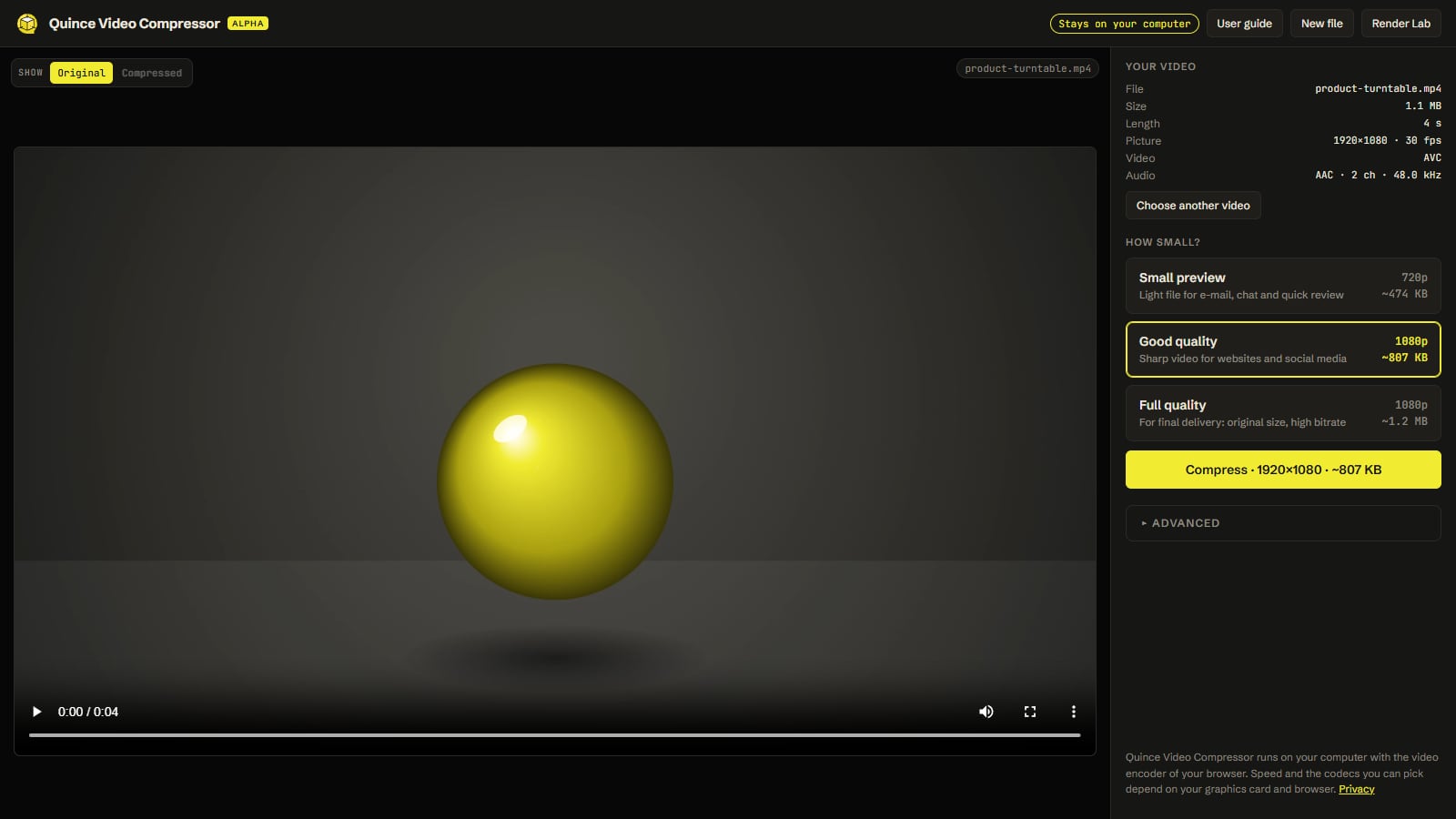
The Quince Video Compressor makes a video smaller without sending it anywhere. You drop in a file, press one of three buttons and download the result. Everything runs in your own browser, on your own computer: your video is never uploaded.
Three steps
- Open a video. Drop a file onto the window, or press Choose a video. MP4, MOV, M4V, WebM and MKV files work (see Troubleshooting if one does not).
- Pick how small. Press Small preview, Good quality or Full quality. The buttons show the picture size and about how big the file will be. See The three buttons.
- Compress, then download. Press Compress. When it is done, Original and Compressed in the bar above the video let you compare, and Download saves the file.
That is all most people need. If you want control over the data rate, the codec, the picture size or film grain, open Advanced below the buttons. See Advanced settings.
What you need
- A current Chrome or Edge on a computer. They offer the most codecs and use the video encoder of your graphics card. Other browsers may work too, with fewer choices.
- Enough free memory to hold the finished file. The result is built in memory, so a file over about 2 GB does not fit.
If your browser cannot encode video at all, the start screen says so.
The screen at a glance
| Area | What it is for |
|---|---|
| Top bar | The note that your video stays on your computer, New file (starts over), the user guide and a link to the Render Lab |
| Viewport | Your video, with a bar to switch between Original and Compressed, and the name of the file |
| Your video (right) | The facts about your file: size, length, picture, codec and audio |
| How small? (right) | The three quality buttons and the Compress button |
| Result (right) | Size before and after, how much you saved, and Download |
| Advanced (right) | Every setting behind the three buttons |
Your video stays on your computer
The compressor is a web page, but the work is done by your browser, not by a server. The video is read from your disk, compressed with the video encoder built into your browser and kept in memory until you download it. Nothing is sent over the internet, and closing the tab removes it.
Tip: keep the tab open and in front while it works. Browsers slow down tabs that are hidden, and closing the tab stops the compression.
The three buttons
Once a video is open, How small? shows three buttons. Each one is a complete set of choices made for a purpose. Pick one, press Compress and you are done.
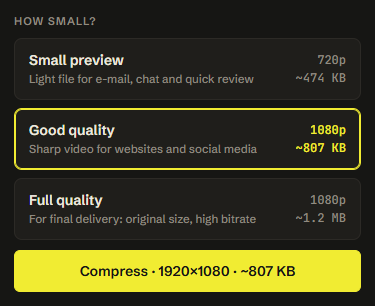
| Button | Picture | Best for |
|---|---|---|
| Small preview | At most 720p, 30 frames a second | Sending by e-mail or chat, quick review rounds, a first look at a render |
| Good quality | At most 1080p, 30 frames a second | Websites, social media and presentations |
| Full quality | Original size and frame rate, high data rate | Final delivery to a client or a broadcaster |
On every button the right-hand side shows the picture height and about how big the file will be. It is an estimate: the real size depends on how busy the picture is.
What each button sets
All three make an MP4 with H.264, which plays on practically every phone, computer, TV and website. If your browser cannot encode H.264, they make a WebM with VP9 instead.
| Small preview | Good quality | Full quality | |
|---|---|---|---|
| Picture size | Down to 720p | Down to 1080p | Same as your video |
| Frame rate | At most 30 fps | At most 30 fps | Same as your video |
| Data rate | Low | Medium | High |
| Audio | 96 kbps | 160 kbps | 256 kbps |
| Keyframes | Every 2 seconds | Every 2 seconds | Every second |
A button never makes a video bigger. A smaller video is never enlarged, and the data rate is kept below what your original already has, so a video that is already small stays small.
Note: compressing always loses a little. Full quality loses the least and is meant to look the same as the original to the eye, but it is still a new encode. Keep your original file.
Compress
Compress shows the size of the picture and the estimated file size, for example Compress · 1280×720 · ~12 MB. While it works a window shows the progress, the time that has passed and about how long is left. Cancel stops it and keeps your settings.
The time depends on the length and size of the video and on your computer. A graphics card with a video encoder makes it several times faster than a processor alone.
The result
When it is finished the Result area lists:
- Before and After: the size of the files
- Saved: how much smaller it got. If your video was already small you may see none (already small)
- Picture: size, frame rate and codec of the new file
- Time: how long it took
The viewport switches to the compressed video. Use Original and Compressed in the bar at its top left to compare the two at the same moment in the video. Both stay loaded, so switching is instant.
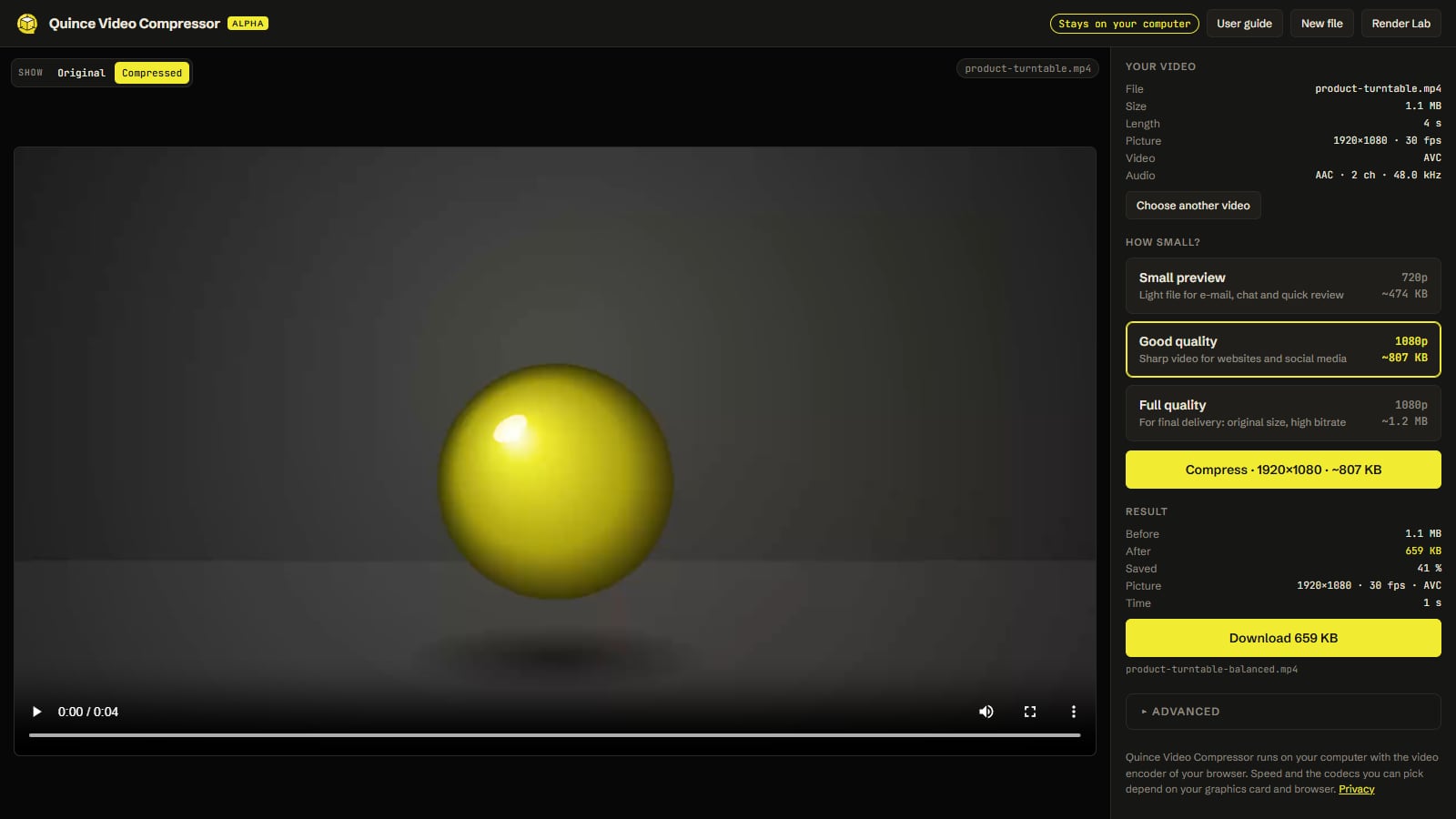
Download saves the file. Its name is your file name with the choice added: clip-preview.mp4, clip-balanced.mp4, clip-final.mp4, or clip-custom.mp4 when you changed settings yourself.
Not happy? Pick another button, or change a setting under Advanced, and press Compress again. The original stays open.
Advanced settings
Advanced (below the buttons) opens every setting behind them. Changing any of them switches the three buttons off and the note Custom settings are in use appears: from then on your own values are used. Reset to default (at the bottom of Advanced) goes back.
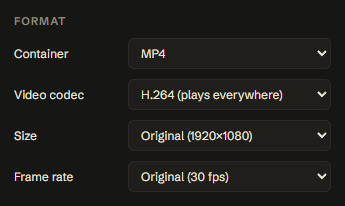
Format
| Setting | What it does |
|---|---|
| Container | The kind of file. MP4 plays everywhere. WebM is made for web pages, and holds VP9 or AV1 video with Opus audio |
| Video codec | How the picture is compressed. See the table below. Only codecs your browser can really encode are listed |
| Size | The picture size. Original, or a smaller height (2160p, 1440p, 1080p, 720p, 480p, 360p; only sizes below your video are listed), or Custom… |
| Frame rate | Original, or a lower rate: 60, 30, 25, 24 or 15 frames a second. A higher rate than the video has is never offered |
Video codecs
| Codec | Good for | Remember |
|---|---|---|
| H.264 | Everything. Plays on all devices, sites and players | The default for a reason |
| H.265 / HEVC | Smaller files at the same quality | Many browsers and players on Windows cannot play it |
| VP9 | Web pages and WebM files | Not every editor opens it |
| AV1 | The smallest files | Slow to encode, and only some browsers and devices can play it |
When in doubt, use H.264.
Custom size
Choose Custom… in Size and two boxes appear for the width and the height in pixels. Numbers are made even, and the limits are 16 to 8192 pixels.
- Keep proportions (on by default): change the width and the height follows, and the other way round.
- Switch it off to type any width and height. When the new shape is different from your video, Other shape appears:
- Crop to fill cuts the edges that do not fit (for example a 16:9 video made vertical for a story)
- Black bars keeps the whole picture and fills the rest with black
- Stretch squeezes the picture to the new shape
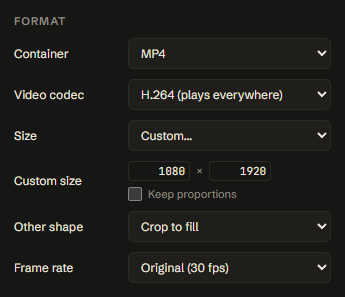
Making the picture bigger than the original is allowed, but it only enlarges, it does not add detail.
Data rate
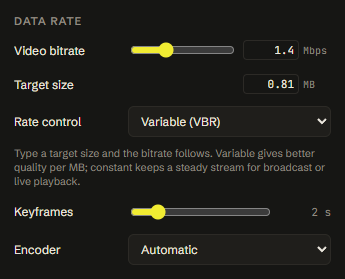
The data rate (bitrate) is how much information every second of video gets. More means better picture and a bigger file.
| Setting | What it does |
|---|---|
| Video bitrate | The data rate in Mbps (megabits a second). Use the slider (it is finer at the low end) or type a number. Roughly: 1–3 Mbps for a 720p preview, 5–10 Mbps for 1080p, 20 Mbps and more for 4K |
| Target size | Type the file size you want, in MB, and the bitrate is worked out for you from the length of the video and the audio. It also shows the estimated size when you move the bitrate slider |
| Rate control | Variable (VBR) spends more bits on difficult scenes and fewer on easy ones: better quality per MB. Constant (CBR) keeps a steady stream, which some broadcast and live systems ask for |
| Keyframes | How often a full picture is stored, from every half second to every 10 seconds. Frequent keyframes make seeking and editing easier and the file a little bigger |
| Encoder | Automatic lets the browser decide. Graphics card is fast. Processor is slower but steadier |
Tip: a file that has to stay under a limit (an e-mail attachment, a chat app)? Type the limit in Target size, a little lower than the limit, and press Compress.
Grain
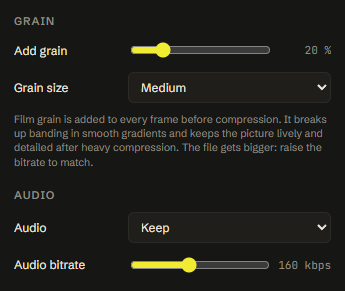
Add grain puts film grain on every frame before the video is compressed. It is for people who care about the look of fine detail:
- Heavy compression smooths smooth areas, such as a sky, a studio backdrop or a soft shadow, and draws visible steps (banding) into them. Grain breaks those steps up.
- It keeps the picture lively and detailed instead of plasticky after a strong compression.
The slider goes from Off to 100 %. A small amount (10–25 %) is usually enough. Grain size sets the size of the grains: Fine, Medium or Coarse. The grain moves from frame to frame like real film grain, and it is a little weaker in deep shadows and in highlights, as on film.
Note: grain is noise, and noise is hard to compress. The file gets bigger, and at a low data rate the encoder smooths the grain away again. Use grain together with a higher bitrate, for example under Full quality. The three buttons always switch it off.
Audio
| Setting | What it does |
|---|---|
| Audio | Keep compresses the sound again, in AAC for MP4 and Opus for WebM. Remove makes a silent video, which is smaller and right for loops and web page backgrounds. It is greyed out when your video has no sound |
| Audio bitrate | From 48 to 320 kbps. 128 kbps is good for most videos, 192 and more for music |
If your browser cannot encode the audio, the video is still made, without sound, and the result says so.
Your settings
The compressor remembers what you chose, and you can keep your favourite settings as a default or in a file.
Remembered automatically
The last settings you used (a button, or your own values) are kept in your browser. When you come back, or press New file, the next video starts with them. Nothing is sent anywhere: they live only in this browser.
Default, and Reset
At the bottom of Advanced the Settings group has four buttons:
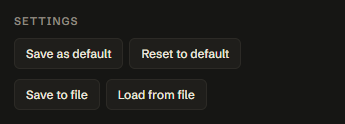
| Button | What it does |
|---|---|
| Save as default | Keeps the current settings as your default. It is used the first time you open the compressor on this computer, and by Reset to default |
| Reset to default | Goes back to your default. Without a saved default it goes back to Good quality |
| Save to file | Writes the settings to a small file, quince-video-preset.json |
| Load from file | Reads a settings file and uses it |
Settings files
A settings file is a way to share a recipe. Make the settings once, for example 1080×1920, H.264, 8 Mbps, light grain for a client's vertical ads, press Save to file and send the file to a colleague. They press Load from file and get exactly the same settings. A file that is not a Quince video settings file is refused with a message.
The file holds the settings only. It never contains a video.
Tip: the buttons for the settings are inside Advanced, which opens when a video is open.
New file
New file in the top bar starts over with an empty window (the page reloads). Your settings are kept. If a compression is running, the browser first asks whether you really want to leave.
Troubleshooting
"This browser cannot decode … video"
The compressor reads your video with the decoder of your browser. If the browser has none for the codec in your file, the message says which codec it is, and Compress stays off.
- ProRes (common in files from After Effects, Premiere and DaVinci Resolve): Chrome and Edge cannot decode it. Export the video as H.264 MP4 from your editor first.
- HEVC / H.265 (common in files from phones and cameras): on Windows it needs the HEVC Video Extensions from the Microsoft Store, or a graphics card that supports it. If that is not possible, export as H.264 first.
- Other codecs: export as H.264 MP4 first.
The panel Your video shows the codec of your file in the line Video.
The video does not play in the viewport
The viewport uses the video player of the browser. If it stays black while the file is accepted, the browser can read the video for compressing but not play it. Try Compress anyway.
"This browser cannot encode …"
The codec you chose (often HEVC or AV1) is not available for the picture size you asked for. Choose H.264 under Video codec, or a smaller Size.
The file is not smaller
A video that is already compressed hard has little left to give. If the video was already small, Saved says none (already small). Try Small preview, a lower Video bitrate or a Target size.
The file is too big
- Lower the Video bitrate, or type a Target size.
- Choose a smaller Size and a lower Frame rate.
- Switch Add grain off. Grain makes files bigger.
- Choose Remove under Audio if the sound is not needed.
Banding in smooth areas
Steps of colour in a sky, a backdrop or a shadow come from compressing too hard. Raise the Video bitrate, or add a little grain (10–25 %) together with a higher bitrate. See Grain.
It is slow
- The compressor is faster with a graphics card that has a video encoder. Under Advanced → Encoder try Graphics card.
- Large sizes and AV1 are slow. A smaller Size and H.264 are the fastest.
- Keep the tab open and in front. Hidden tabs are slowed down by the browser.
A very long or huge video
The compressed file is built in memory and must fit there, so a result over about 2 GB cannot be made. Choose a lower bitrate or a smaller size. The original file is read from your disk in pieces, so it can be much bigger.
There is no sound
The result says The audio could not be converted in this browser and is left out when the browser has no audio encoder for the format. Try the other container (MP4 or WebM), or check that Audio is on Keep.
Still stuck
Write to us through quincemedia.com and say what browser you use and what the Video line of your file says.
Nothing in the guide matches that.